All the things Cricut Maker can do for DIY projects
What Cricut Maker can do at a glance
If you are searching for all the things Cricut Maker can do, the practical answer is that it is a desktop smart cutting machine for cutting, writing, drawing, scoring, foiling and creating specialty effects such as engraving, debossing, perforation and wavy edges. Cricut’s official documentation says Cricut Maker machines can cut 300+ compatible materials and work with 13 tools for cutting, writing, scoring and other effects. Some tools and accessories are sold separately. (help.cricut.com)
In practice, that makes the Maker useful for vinyl decals, iron-on apparel, cards, labels, stickers, paper crafts, fabric pieces, leather accents, chipboard signs, thin wood decor and personalized gifts. For more hands-on guides in this category, visit our DIY Tech section.

The main operations Cricut Maker supports
The easiest way to understand the machine is to separate “projects” from “operations.” A finished project may combine several operations, such as cutting vinyl, drawing text with a pen and scoring a fold line. The Maker’s value comes from changing tools for different operations, rather than from doing only one type of cut.
| Operation | What it is used for | Common project examples |
|---|---|---|
| Cutting | Shapes, letters and detailed designs from compatible materials | Vinyl decals, cardstock designs, iron-on graphics, labels |
| Writing and drawing | Pen or marker lines created directly by the machine | Cards, envelopes, gift tags, planner pages |
| Scoring | Fold lines for cleaner creases | Cards, boxes, envelopes, 3D paper projects |
| Foiling | Decorative foil effects using Cricut’s Foil Transfer Tool | Invitations, labels, art prints, gift packaging |
| Engraving | Etched designs on compatible blanks | Metal tags, acrylic-style blanks, charms |
| Debossing | Indented decorative details | Leather accents, cardstock, paper crafts |
| Perforating | Tear lines made from small cuts | Tickets, coupons, booklet pages, journals |
| Wavy cutting | Decorative wave-shaped edges | Cards, tags, envelopes, scrapbook accents |
Cricut’s tool guide lists the Foil Transfer Tool, Scoring Wheel and Double Scoring Wheel, Debossing Tip, Perforation Blade and Wavy Blade among the tools used for these effects. It also notes that several QuickSwap tools, including Debossing Tip, Perforation Blade and Wavy Blade, are compatible only with Cricut Maker machines. (help.cricut.com)
Materials the Cricut Maker can handle
Cricut Maker is often described as a “300+ materials” machine, but that phrase needs context. It includes common craft materials such as paper, cardstock, vinyl and iron-on, as well as more demanding materials such as fabric, felt, leather, chipboard, matboard and balsa. Cricut’s current material list also makes an important distinction: some materials can be cut, while others, including certain acrylic and aluminum sheets, are used with engraving rather than cutting. (help.cricut.com)
Paper, cardstock and sticker materials
For everyday DIY work, paper and cardstock are common starting points. The Maker can cut card fronts, layered paper art, scrapbook shapes, gift tags, envelopes and party decorations. With the right setup, it can also support Print Then Cut sticker workflows, where a design is printed first and then cut around by the machine. Cricut says all Cricut Maker machines can use Print Then Cut on non-reflective white, lightly colored and simple patterned materials, while darker or busier materials may not give the sensor enough contrast. (help.cricut.com)
Vinyl and iron-on
Vinyl is used for decals, labels, mugs, signs and wall graphics. Iron-on is used for T-shirts, tote bags, aprons and fabric accessories. The machine cuts the design, and the user weeds away unwanted material before transferring it to the final surface. For heat-transfer projects, the Maker does not replace a heat press or other heat source; it prepares the design, while heat application is handled separately.
Fabric, felt and sewing-related projects
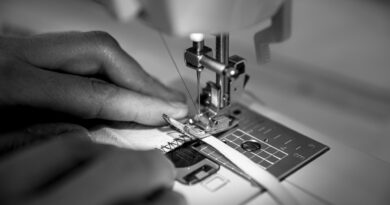
The Maker line is especially useful for fabric because it supports fabric-focused blades and workflows. It can cut quilt pieces, appliqué shapes, felt flowers, costume details and small textile patterns. Cricut’s own setup guide for the original Maker notes that the machine’s Adaptive Tool System makes it possible to cut fabrics, engrave metal and deboss leather, depending on the tool and material. (help.cricut.com)
Leather, chipboard and thin wood
For denser craft materials, the Maker can create leather keychains, faux leather earrings, chipboard signs, structural paper models and thin wood decorations. Cricut’s material documentation lists the maximum thickness for Cricut Maker and Maker 3 as 3/32 inch, or 2.4 mm. The company also cautions that successful cutting depends on rigidity, density and the specific material setting. (help.cricut.com)
Project ideas by use case
The machine’s practical value is clearer when projects are grouped by use case rather than by material alone. One user may rely on it mainly for organization labels, while another may use the same machine for apparel, party decor or small-batch packaging.
- Home organization: pantry labels, cable labels, storage bin decals, spice jar stickers and drawer tags.
- Apparel and accessories: T-shirt graphics, tote bag designs, baby onesies, hats, aprons and fabric patches.
- Paper crafts: greeting cards, invitations, layered wall art, paper flowers, cake toppers and 3D boxes.
- Personalized gifts: mugs, ornaments, bookmarks, keychains, journals, gift tags and custom packaging.
- Events and parties: banners, table numbers, favor boxes, photo booth props, signage and place cards.
- Small-batch branding: product labels, thank-you cards, packaging stickers, hang tags and envelope details.
- Learning and family projects: classroom labels, reward charts, flashcards, puzzles, craft kits and holiday decorations.
These examples are not separate machine features. They are combinations of compatible materials, Design Space files and the right blade or tool. A layered paper flower may use only cutting. A premium invitation may combine cutting, scoring, pen writing and foiling.
What changes between Cricut Maker and Cricut Maker 3
The original Cricut Maker and Cricut Maker 3 share the same broad purpose, but they differ in speed, material loading and maximum cut length. Cricut’s comparison in its help documentation lists two tool clamps for both models and 13-tool compatibility for both. Maker 3 adds Smart Materials support for long matless cuts. The original Maker is limited to mat-based loading for standard projects, with a maximum cut area of 11.5 in x 23.5 in on a 12 in x 24 in mat. (help.cricut.com)
For Maker 3, Cricut lists Smart Vinyl cuts up to 11.7 in x 12 ft and states that Smart Materials can be fed without a cutting mat. The company also notes that Smart Materials for Cricut Maker 3 and later need to be at least 6 in long to feed without a mat; shorter scraps can still be used on a mat. (help.cricut.com)
This means the better machine choice depends heavily on project length. If your work is mostly cards, labels, stickers and 12 in x 12 in mat projects, the original Maker still covers many needs. If you regularly make long wall decals, banners or repeated vinyl graphics, Maker 3’s Smart Materials workflow is a meaningful advantage.
Design Space capabilities and file limits
Cricut Maker projects are prepared in Cricut Design Space. The software controls the operation type, material setting, mat layout and tool prompts. It also lets users upload their own artwork, but file support has limits. Cricut’s upload documentation says Design Space supports SVG, JPG, BMP, PNG, GIF and DXF uploads, while TIFF and PDF are not supported for image upload. (help.cricut.com) See also: Gadgets.
That matters for anyone buying SVG bundles, turning a logo into a decal or building a sewing-pattern workflow. SVG files generally preserve vector shapes, while raster images such as PNG and JPG may need cleanup before they cut cleanly. Cricut’s documentation also says its Convert to Layers feature works best with simple clipart-style raster images because photos contain gradients that can produce varied results. (help.cricut.com)
Design Space can also affect what the Maker can do in practice. A blade may be compatible, but the correct operation and material setting still have to be selected. When a project includes pen lines, score lines or cut lines, the design must be organized so the machine understands which tool to use and when to pause for a tool change.
What Cricut Maker cannot do
Cricut Maker is versatile, but it is not a general-purpose fabrication machine. It does not print ink, so printed stickers and Print Then Cut projects require a separate printer. It does not replace a heat press, so iron-on and infusible transfer projects still need heat application. It is also not a laser cutter, 3D printer or CNC router.
The 2.4 mm thickness limit should not be read as a guarantee that every 2.4 mm material will cut well. Dense, brittle, warped or textured materials can fail even if they fit under the rollers. Cricut’s own material guidance says maximum thickness can vary with rigidity and density, and it recommends test cuts when working with materials that are not already listed. (help.cricut.com)
There are workflow limits as well. Long matless cuts are for Smart Materials on compatible newer Maker models, not for the original Maker without a mat. Some specialty effects require separate tools, housings or consumables. Foiling needs foil transfer sheets, engraving needs an engraving tip, and scoring wheels or debossing tips are separate from a standard fine-point blade.
How to decide what to make first
A practical way to start is to choose one operation, one material family and one finished use. For example, a beginner might start with adhesive vinyl labels because they require only cutting, weeding and transfer. A paper crafter might start with a scored greeting card. A sewist might start with a simple fabric appliqué instead of a complex multi-layer pattern.
After that, add one new capability at a time. Move from basic cardstock cuts to scored boxes, then to foil accents. Move from simple vinyl decals to layered vinyl, then to longer Smart Materials cuts if you own a compatible model. This approach reduces wasted material and makes it easier to learn which blade, mat, pressure and design settings produce reliable results.
The key takeaway is that Cricut Maker is not defined by one project category. It is a tool platform. With the right blade, mat, material and file setup, it can support a wide range of DIY tech and craft workflows, from everyday labels to more advanced engraving, debossing and fabric cutting.
Frequently asked questions
Can Cricut Maker cut wood?
Yes, Cricut Maker can cut certain thin wood materials, such as compatible balsa settings, when used with the correct blade and setup. It is not designed to cut thick lumber, hardwood blocks or general workshop wood. Cricut’s material list includes balsa settings up to 3/32 in, or 2.4 mm, for Maker 3 and Maker 4, and the original Maker documentation lists the same 2.4 mm general thickness figure. (help.cricut.com)
Can Cricut Maker engrave metal?
It can engrave compatible blanks with the Engraving Tip, but engraving is not the same as cutting. Cricut’s material documentation specifically notes that some materials, including acrylic and aluminum sheets, may be compatible with the Engraving Tip even though they are not materials the machine cuts. (help.cricut.com)
Can Cricut Maker make stickers?
Yes. The common method is to design the artwork in Design Space, print it with a separate printer and use Print Then Cut so the Maker cuts around the printed design. Cricut says Maker machines can Print Then Cut on non-reflective white, lightly colored and simple patterned materials, but darker colors and some patterns may not scan reliably. (help.cricut.com)
Do you need extra tools to do everything Cricut Maker can do?
Yes. The machine usually includes a starter blade, but specialty operations such as engraving, debossing, perforating, wavy cutting, foiling and some scoring workflows require separate tools or consumables. Cricut’s tool documentation lists these tools separately, and its setup pages note that some blades, QuickSwap tools and accessories are sold separately. (help.cricut.com)